I Checked Out a $300 Digital Calendar to Reduce My Mental Load. Now Even My Ten Year Old Child Is Helping.
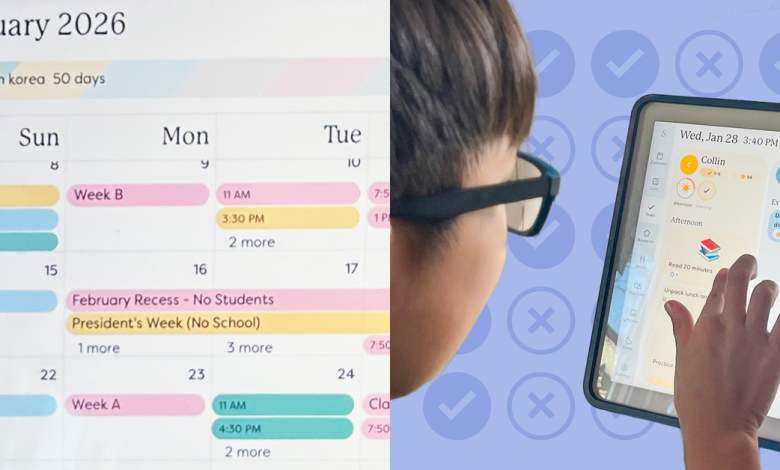
Skylight Calendar is a smart touchscreen display, and anyone in the family can use it for everything from swiping the calendar to viewing the day’s schedule and adding items to the grocery list. It is paired with an app, and with this app a parent or guardian can control schedules, lists, and other features, and can access everything on the go.
The calendar comes in three sizes (I have the 15-inch version; there’s also a large, 27-inch version and a smaller, 10-inch one). It also looks like a large tablet or digital photo frame. It can be mounted on a wall or supported on a desk or table (I did the latter because I lacked wall space with a nearby power source).
The first step I took was to integrate my Google Calendar with Skylight Calendar. (It also works with Apple’s iCloud calendar and Microsoft Outlook, although it doesn’t work well with the latest ones.) Each person in my family is assigned a color, so on the busiest days, the calendar looks like a rainbow grid. One of the most useful features is that it syncs both ways: When someone adds an event to Skylight Calendar, it automatically appears in your Google Calendar (and vice versa).
But the benefits that come with the Plus Plan ($79 per year) are what make Skylight Calendar valuable, and set it apart from the competition. Those benefits include a feature called “magic import”: I can forward a birthday party invitation (or any message with an event) to my designated Skylight email address, and it will automatically be added to the calendar. Likewise, when my child’s school issued a list of important dates, I took a picture of the list and sent it to Skylight’s email address, and it was added to our plans. I can also send photos to Skylight’s email address, and they will play as a slideshow when the calendar is on standby.
Here’s another handy feature of the Plus Plan (especially since the calendar already sits on my kitchen counter): I’ve imported some of my favorite recipes, so I can easily access them from the Skylight Calendar. It can add recipes from photos or transfer them from a blog, stripping them down to ingredients and steps without the extra fuss and backstory. (It can also help you create a meal plan; this is a feature I didn’t take full advantage of.)
For families with children, I have found the Skylight Calendar to be especially helpful for elementary school-aged children. Children in this age group usually don’t have their own mobile phones, but their lives are getting very busy. With Skylight, they can navigate the calendar and view their schedules, chores and tasks. Children in this age group are also likely to be incentivized by rewards (another powerful feature of the Plus Plan). Kids can earn stars by completing chores. For example, my 10-year-old gets a star for cleaning the table after dinner. And then kids can redeem stars for prizes, like a pack of Pokémon cards or more screen time. (Note: Assigning tasks and chores is free and included with the calendar; creating a reward menu is included with the Plus Plan.)
My 10 year old was the most avid user of my family. He checks the calendar every day, monitors the stars he has accumulated and notices any future periods. He knows when a parent will be out of town (and no longer has to ask every day when that parent will be back). And you remember that you have piano lessons on Tuesday. Also, by using the countdown calendar feature, you know exactly how many days until his birthday.
I’ve started to think of the Skylight Calendar as a second brain or, as my 10-year-old calls it, “a memory system.” We dispose of grocery lists and other shared household items, such as refilling parchment paper. When my 10-year-old needed to learn his lines for a musical theater show, I added that to his activities, so he knew to prioritize practicing each day. The best part is that I’m not the only one following these details; Everyone can easily add to the calendar. (My 10-year-old always adds his favorite instant ramen to our grocery list, so we don’t forget.)
The calendar can also help people of the sandwich generation who are caring for aging family members. In our piece on how caregivers stay organized, Kat Carney (who cares for her 84-year-old mother and 91-year-old father outside of Atlanta) discusses using Skylight Calendar to coordinate checklists, meal plans, and appointments with her parents and their caregivers. “Now when my father asks me something, I just point to the calendar.” When the home health aide asks me, I point to the calendar,” she said. “It doesn’t overload my brain.”
But, like most technologies, with this calendar I faced some technical issues. One time, the app crashed while I was in the store trying to check my inventory. Sometimes, the “magic import” did not transfer the event to the calendar easily. And at some point, my son realized that he could reward himself with stars – without completing the actual task. These are not dealers, and luckily there is an unofficial Facebook group that shares ideas, hacks, and troubleshooting.