
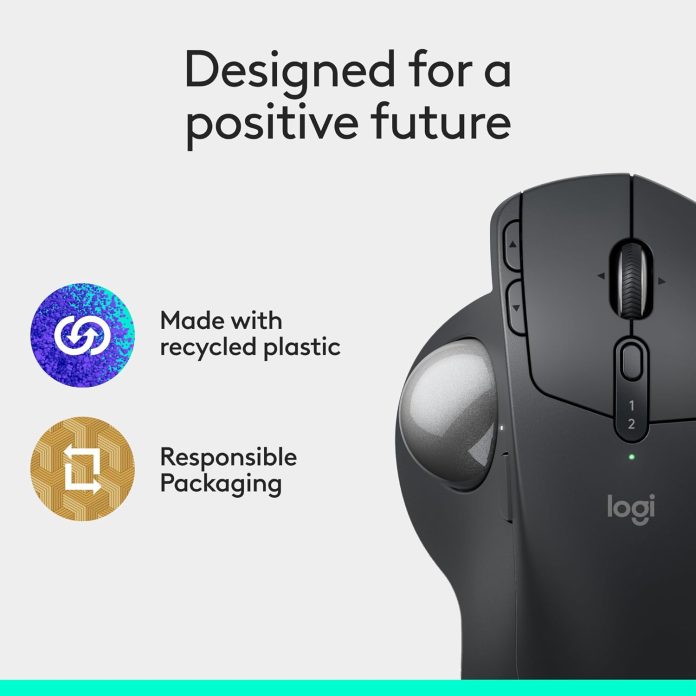

Affiliate Disclosure: I’m an Amazon Associate. If you buy through the links in this post, I may earn a small commission at no extra cost to you. I switched to trackballs to save my wrist from carpal tunnel, and I bought this MX Ergo S to see if the upgrade was actually worth it.
If you spend 8 to 10 hours a day in front of a computer like I do, you know the “desk ache”—that dull throb in your wrist that sets in around 3 PM. I made the switch to trackballs years ago, and the original MX Ergo was nearly perfect. But it had one major flaw: that ancient Micro-USB port. The new Logitech MX Ergo S (2026) finally fixes that, while adding some much-needed security and speed upgrades.
The Tilt: 0 or 20 Degrees?
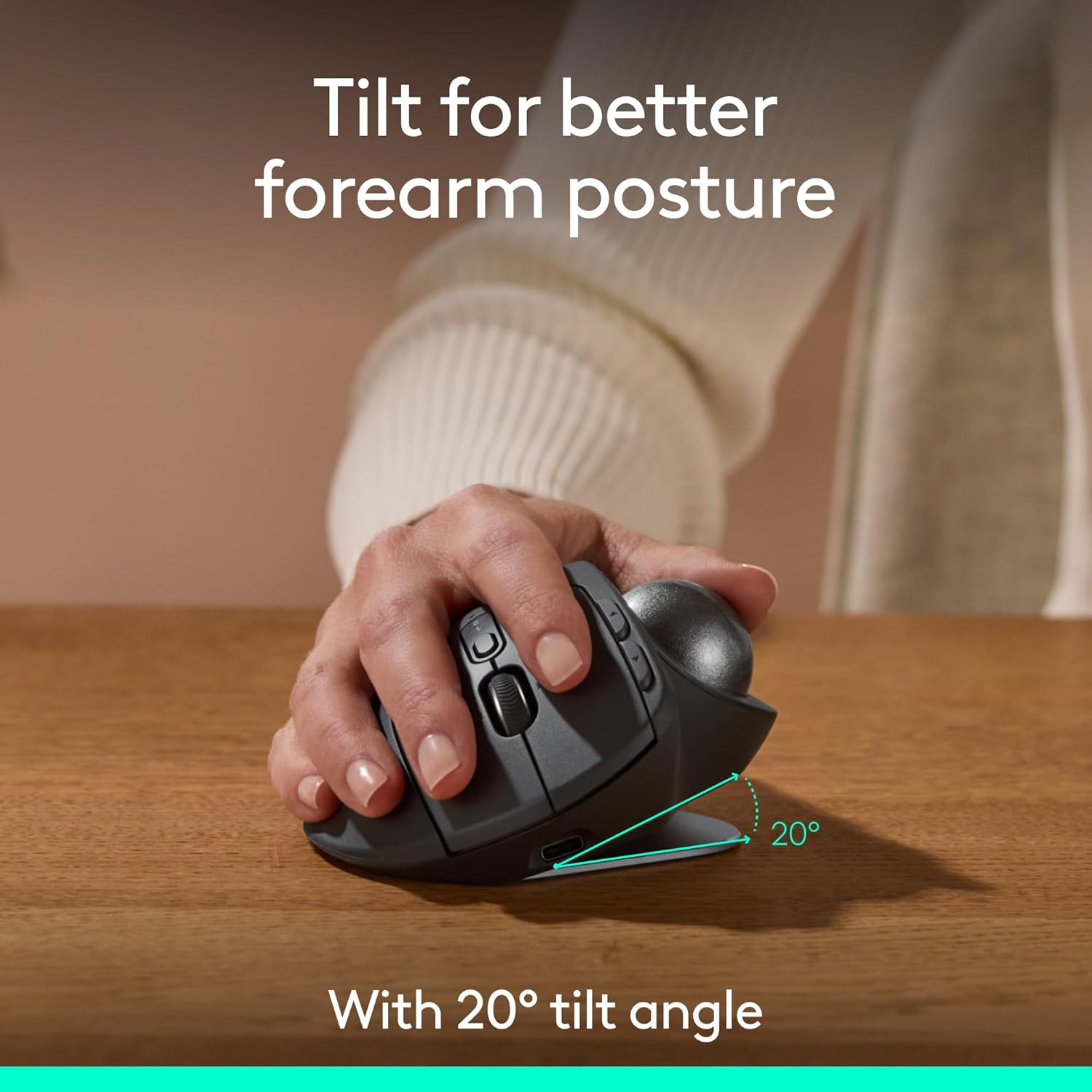
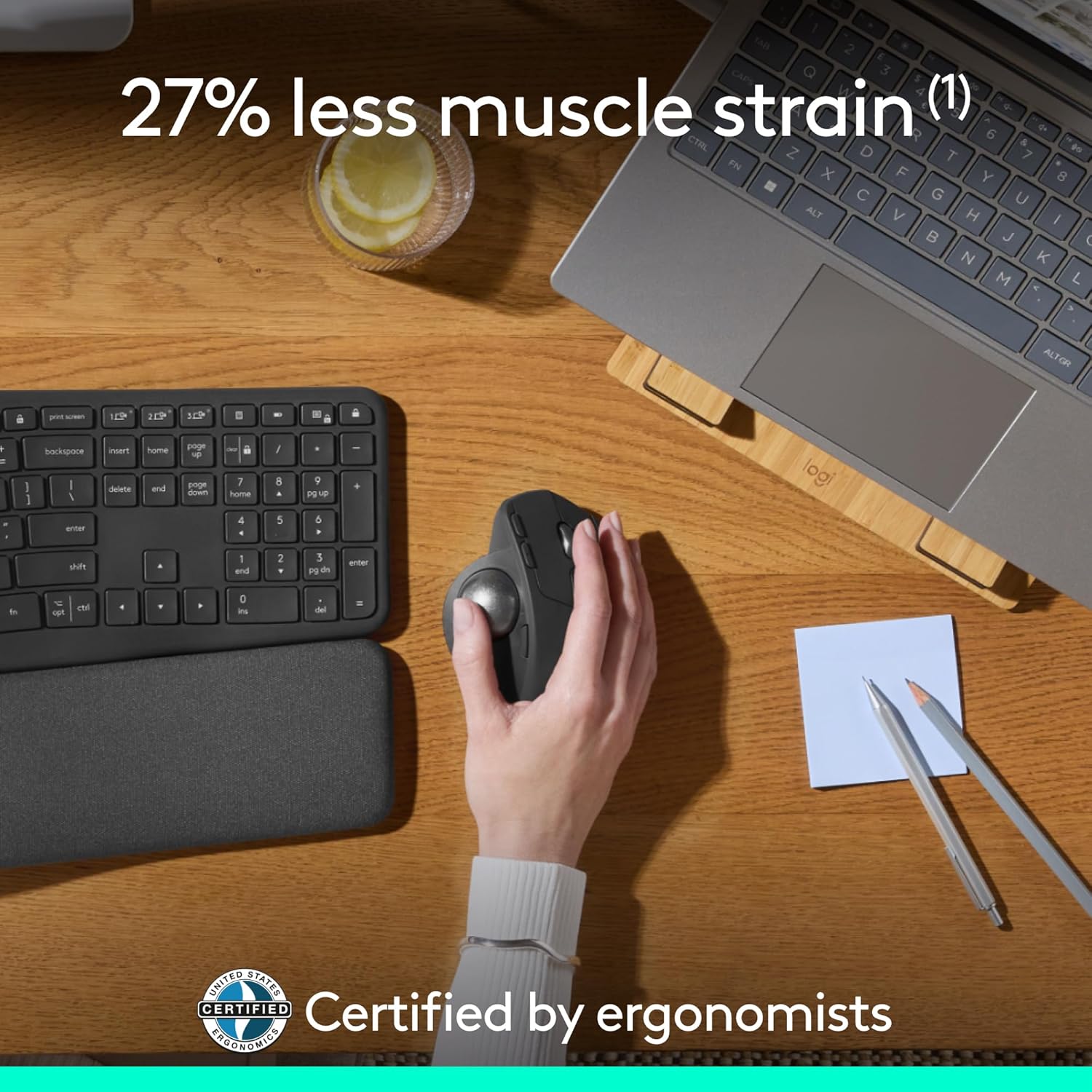
The standout feature of the MX Ergo line is the magnetic hinge. You can keep it flat, or “pop” it to a 20-degree angle. I’ll be honest: it feels weird for the first hour. But once your hand adjusts to that more natural “handshake” position, going back to a regular mouse feels like a chore. It keeps your forearm from twisting, which is the main culprit for repetitive strain. I keep mine at 20 degrees 100% of the time.
The “S” Upgrades: USB-C and Logi Bolt
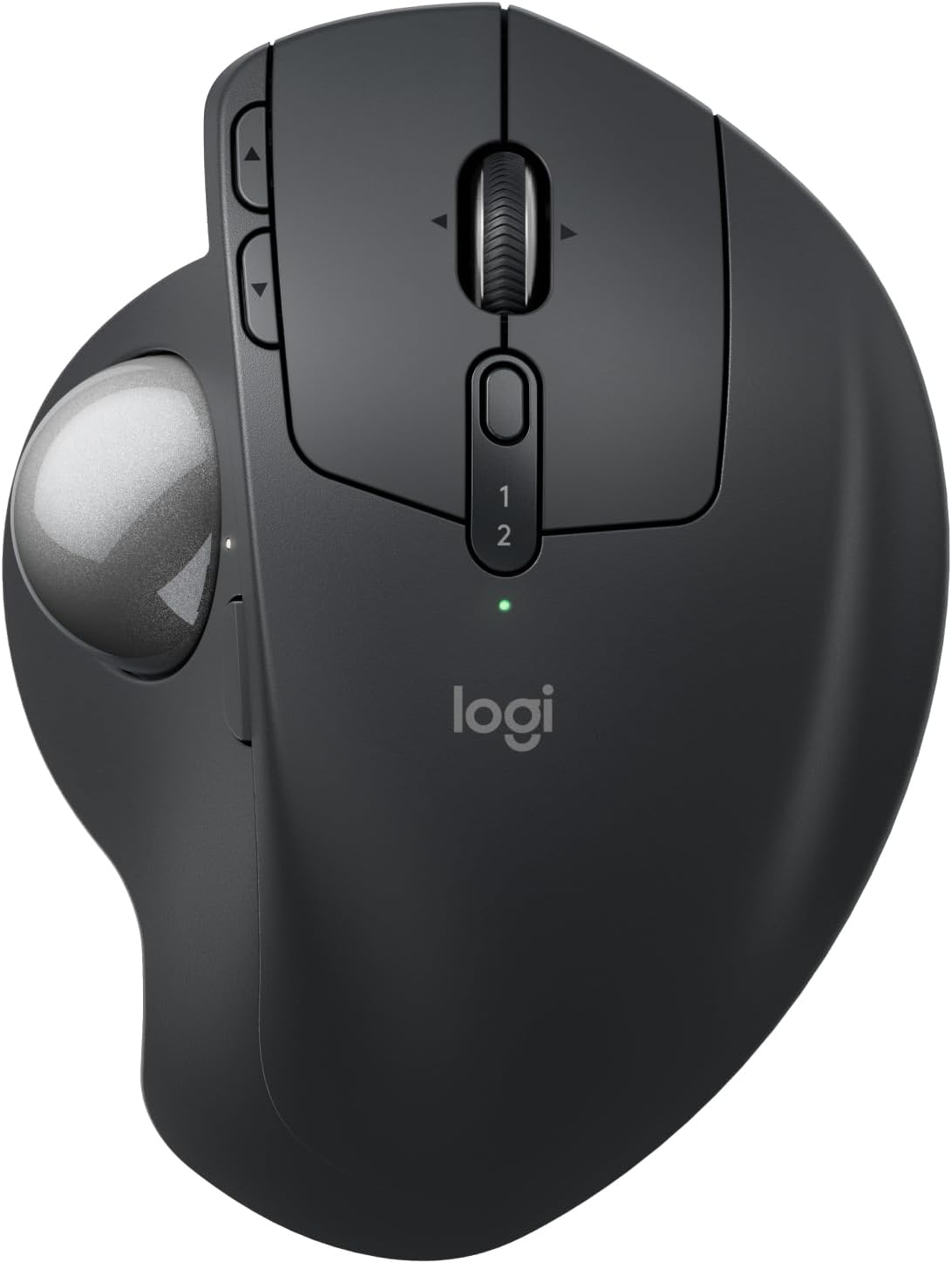
Let’s talk about the “S” in the name. The most important update for me is USB-C charging. I’ve finally cleared the last Micro-USB cable off my desk. Beyond the port, the MX Ergo S now uses the Logi Bolt receiver. If you work in a corporate office or a “noisy” wireless environment, this encrypted dongle is way more stable than standard Bluetooth. That said, the Bluetooth still works great if you’re switching between a MacBook and an iPad.
6 Programmable Buttons & Precision Mode
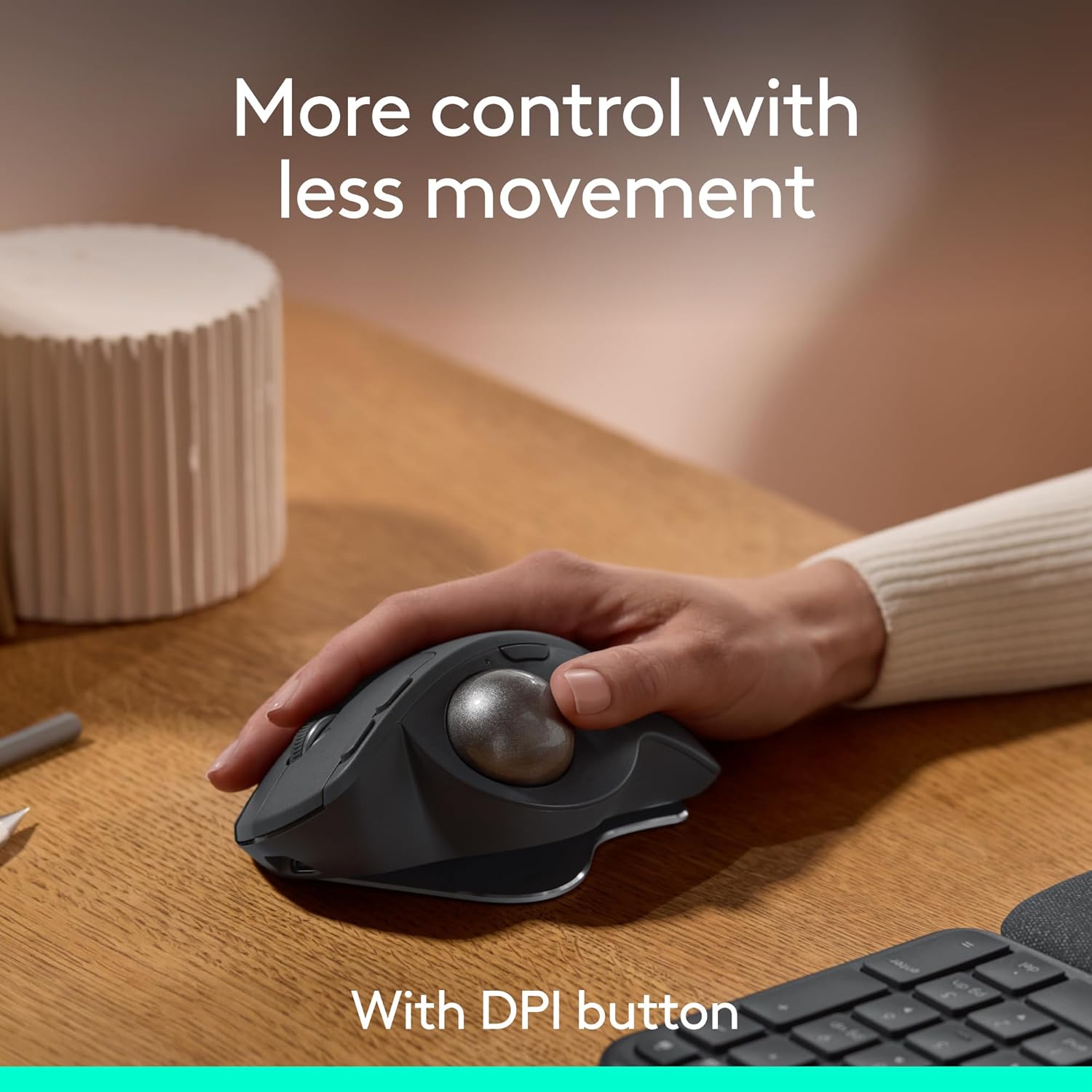
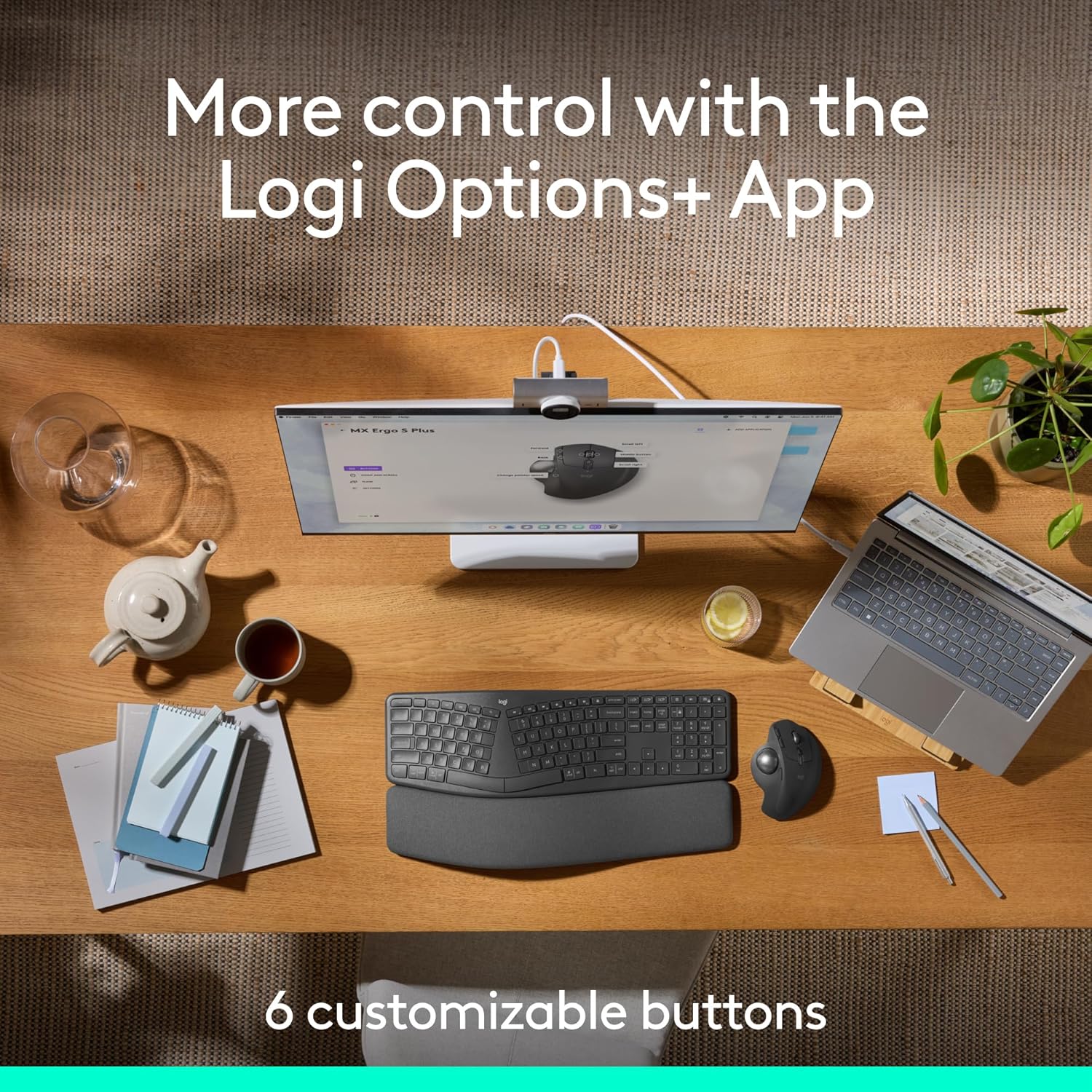
The trackball itself is smooth—really smooth. There is a small button right next to the ball that toggles “Precision Mode.” It slows the cursor down instantly, which is a lifesaver when I’m trying to select specific cells in a massive Excel sheet or doing fine crops in Photoshop. Using Logi Options+, I’ve mapped the back/forward buttons to switch between my browser tabs. It’s a small tweak that saves me hundreds of clicks a day.
Battery Life for the Long Haul
Logitech claims about 4 months of juice on a full charge. I’ve only had mine for a week, and it’s still at 98%. The best part? If you do run out of power mid-project, one minute of charging gives you a full day of use. No more flipping your mouse upside down to charge it like *some* other brands I won’t mention.
The Verdict: Is it Worth the Upgrade?
If you already have the original MX Ergo and you don’t mind the old cable, you might not need this. But if you’re looking for better security (Logi Bolt), faster connectivity, and the convenience of USB-C, the Logitech MX Ergo S is the best trackball on the market right now. If you’ve never used a trackball before, your wrist will thank you—just give yourself a few days to get used to the “thumb life.”
Check out the Logitech MX Ergo S on Amazon here
Are you a trackball convert, or are you still using a traditional mouse? Let’s talk about ergonomics in the comments!