How to set Primary Display on macOS Tahoe, Sequoia, or Sonoma
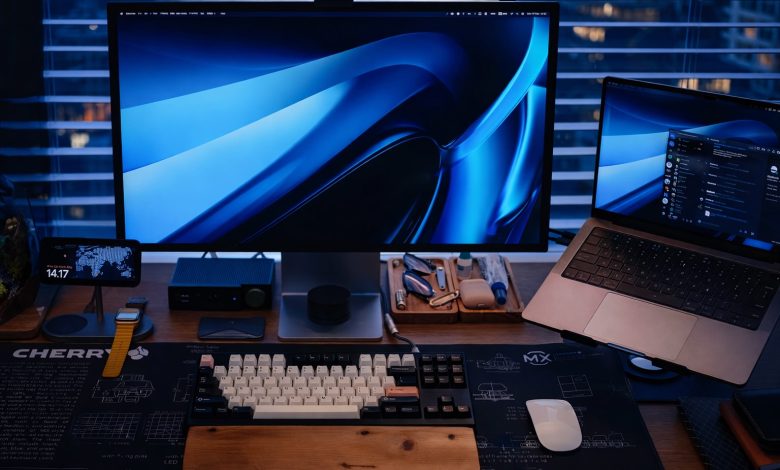

Using multiple displays with a Mac is a very common setup, whether that’s using a large external monitor with a laptop, or using a desktop setup with multiple displays. It’s well known that larger screens and external displays can really boost productivity for some people, and one way to optimize your multi-screen Mac setup is to choose which display is your “primary display”. Unusually, the Main Display in macOS is the screen that shows the Dock, menu bar, desktop icons, and where apps and alerts open automatically, and yes, this can be changed in the Mac’s multi-monitor configuration.
macOS makes it very easy to customize the Primary Display, but it’s also a subtle feature that’s easy to overlook, especially in today’s versions of macOS like macOS Tahoe, macOS Sequoia, and macOS Sonoma.
How to Change Main Display in macOS Tahoe, Sequoia, Sonoma
You must have at least two displays currently running on your Mac to be able to change the primary display. This can be any MacBook laptop connected to an external display, or any other multi-monitor Mac setup.
- Connect external displays to the Mac and make sure they’re turned on, if they’re not already
- From the Apple menu go to “System Settings”
- Go to “Displays”
- Click the “Edit” option to view display properties
- Notice the small thin white menu bar shown at the top of one of the displays, this is what defines and sets the Main Display, so you need to click and drag the white menu bar on the display you want to set as the Main Display.
- The change takes effect immediately, you’ll see the screens refresh and the Dock, Menu Bar, desktop icons, and any new alerts or apps that open will now automatically open on the set Main display.
There you go, you’ve now changed the Primary Display on your Mac.
Once you’ve set a primary display, your preferences will always be set whenever you connect MacOS to that external display. Connecting the Mac to a new external display usually requires you to set up the Primary display again, however.
This works the same for all modern versions of macOS for all Macs with multiple displays, whether you’re using a MacBook Air, MacBook Pro, MacBook Neo, or a MacBook laptop, iMac, Mac mini, Mac Pro, Mac Studio, or any other Mac.
The adjustment setting is obviously hidden, and there is no clear indication that the white menu bar is removed or will be used to change or set the main display, so it is understandable how many Mac users ignore this feature.
How to See the Main Set Display on a Mac
The easiest way to see which Mac display is set as the Primary display is to look at where the Dock, menu bar, and desktop icons are located, since those are always automatically set to the primary display.
You can also open a new app, which will automatically open on the main display, or trigger a system alert, which is also sent to the main display automatically.
Can you move the Dock between Mac screens?
Yes, you can swipe down to the bottom of the screen you wish to show the Dock on, and it will move to that screen, even if it’s not set as the Main display.
Remember, the Dock automatically switches to display on whatever screen the Primary Display is set to.
Yes, MacBook laptops can use a separate Primary Display when connected to external screens
If you’re using a MacBook Air, MacBook Pro, MacBook Neo, or MacBook, you can set the external display as your primary display, but if you disconnect the display from the Mac laptop, the internal laptop screen will automatically set itself as the primary display again.
This is a deliberate behavior, and it makes switching between multi-monitor setups and using a laptop easier and smoother.
What about setting the primary display on older Macs and older versions of macOS?
Note that if you have an older version of MacOS, you can also set the main display using the same trick but the location within the settings and how to access it, is different, as shown here.
Most of the change is due to the switch from System Preferences to system settings, but the behavior of moving the white menu bar to set the default display remains the same.
Why set or change Primary Display on Mac?
For Mac users with a multi-screen setup, as is more common in staff and home office setups, setting a default display can be beneficial to your workflow.
For example, one very common scenario is to set a large external display as the Main Screen when the Mac is a MacBook Pro laptop with a small built-in display. This makes a large outdoor monitor the main workspace to engage with. This setup then places the small laptop screen as a second display panel, on which many users will place auxiliary functions, such as Slack, Messages, Zoom, Notes, Spotify, Apple Music, etc. You can see this with the Messages app on the MacBook display in the image at the top of this article, a color variant of this cool setup found on Unsplash in the outer bar, where you can’t even show the inner Mac bar. Pro display.
–
Are you using multiple monitors and multiple external displays with your Mac setup? Do you change the Main Display to something of your choice to better suit your setup? Did you even know this could happen? Share your thoughts and ideas in the comments.