Your Apple TV Has a Hidden Menu – Here’s How to Access It
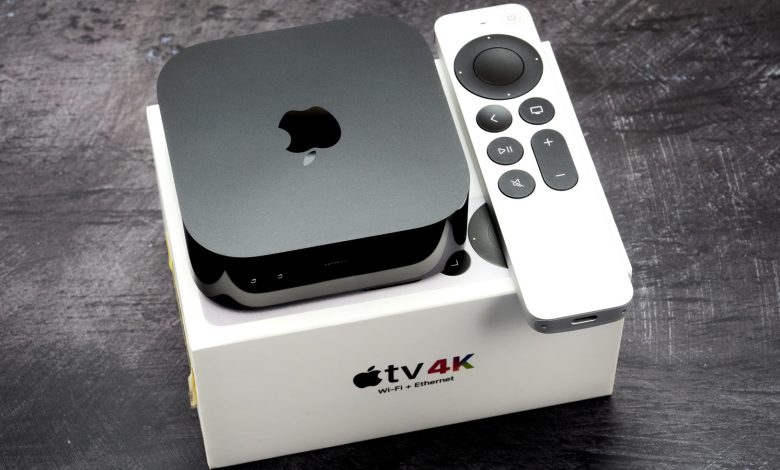
Although the tech giant Apple is yet to bring a real television set to its users’ collection. Despite that fact, the brand’s smart TV box remains one of the best streaming boxes available to consumers. There is a reason for that: reviewers who have tested many smart TV devices believe that the Apple TV surpasses most of the streaming boxes on the market in ways that no consumer should care about, even if they are more expensive than most of their competitors.
Not only that, some groups believe that the Apple TV box can handle many functions better than a smart TV. Of course, if you know anything about Apple diehards, you know that they are always looking for ways to elevate the user experience without the need for downloads or upgrades. It seems that they have indeed revealed a feature or two on the Apple TV that may not be known to many users who already use the devices in their homes.
Of course, that includes a remarkable hidden menu that gives users access to some of the most desirable internal settings advanced on the device. If you would like to see exactly what those settings are, we can tell you that this hidden menu of Apple TV can be accessed without requiring users to jump through many hurdles. Here is a quick overview of the hidden menu and steps to access it.
Here’s how to access the Apple TV hidden menu
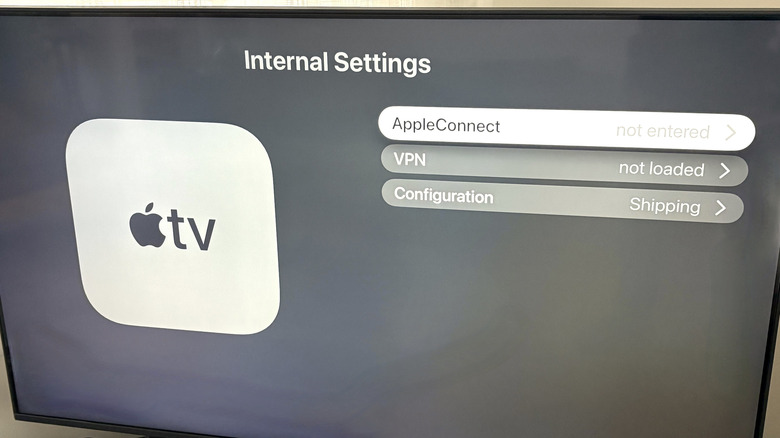
To be clear, the hidden settings menu inside your Apple TV is not designed to improve your daily streaming or viewing. So, most Apple TV users won’t find much use for the advanced options here. In fact, AppleConnect features seem to be inaccessible unless you already have an account, and are mostly for developer use. Most users should, however, be able to access and change VPN profile settings and certain configuration features on their Apple TV. But we would advise you to do so only if you have a solid understanding of what those settings do.
If you’re still interested, the advanced Interior Settings screen can be accessed by clicking a few buttons on your Apple TV remote. Here’s how to do it.
- Turn on your Apple TV box using the device-specific remote.
- With your Apple TV remote in hand, navigate to the Settings icon on your home screen and select it.
- From there, scroll down to the System tab and click on it.
- In the System menu, navigate to the Software Updates tab.
- Once you’ve entered that menu, press the Play/Pause button (marked ▶/II) four times in quick succession.
Once you’ve pressed the Play/Pause button the required number of times, you should be immediately directed to the hidden Internal Settings menu, which displays the AppleConnect, VPN, and Configuration tabs. Once there, feel free to use it however you like. And just for the record, the hidden menu was accessed in this tutorial using an Apple TV 4K device running the latest software updates.
Some hidden Apple TV functions you may be interested in
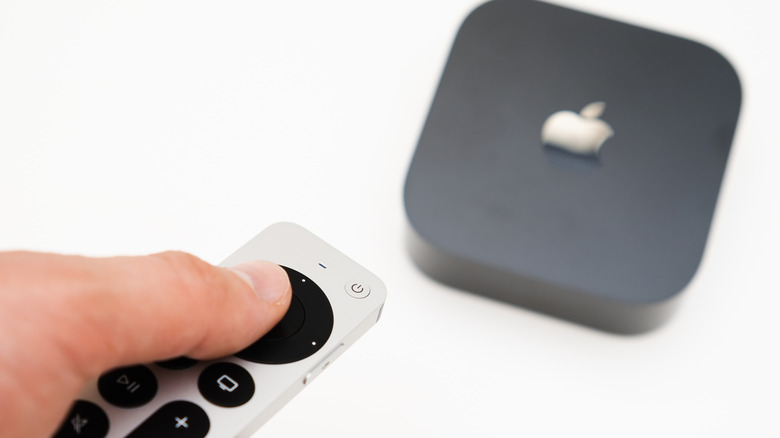
As noted, not everyone will be interested in the features found in the internal hidden settings menu. However, you may be interested in a few lesser-known shortcuts that you can use with your Apple TV remote. Now, a few of those you probably already know, like double-clicking the TV/Control Center button with the small TV screen icon to view open apps and switch between them on the go. But you may not realize that if you press and hold that same button, a pop-up Control Center menu will appear, allowing you to switch between users, adjust sound settings, set a sleep timer, or turn off Apple TV, among other tasks.
Meanwhile, people who struggle with unresponsive apps may want to know that there is an easy way to force close those troubles. To do so, you’ll need to double-click the TV/Control center button and swipe to the app in question. Once you’re settled in an app, double-tap on the circular clickpad to close it automatically. The same function can be performed by swiping up on the inner trackpad inside the circle on the new remotes. Once closed, the app should reset automatically when reopened.
Just an FYI — your Apple TV remote isn’t the only way to control the device. In fact, if you have an iPhone, you can program it to control your Apple TV. And that feature can come in handy if you lose or break your remote.