How to Mirror iPad to Mac, similar to iPhone Mirroring
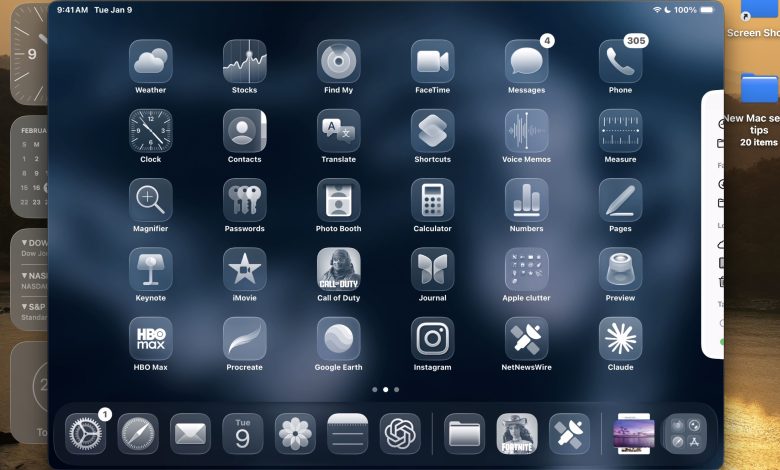

Ever wanted to use iPad Mirroring on your Mac, just like the iPhone Mirroring app? iPhone Mirroring is one of the most useful features introduced in today’s MacOS versions, allowing you to seamlessly mirror and use your iPhone screen directly on your Mac with ease. It is so useful that many Mac users have wondered if iPhone Mirroring can be used for iPad as well, and why there is no app or feature for iPad Mirroring.
Perhaps you are an iPad user who has even tried to change the mirror iPhone from iPhone to iPad, as you can easily change the mirror on other iPhone devices that you own and around. If so, you’ll see that you can’t select an iPad (for now anyway), you can only select other iPhones.
This is not to say that there isn’t a way to emulate an iPad on a Mac, and in fact there are several ways you can do this or achieve similar results.
Option 1: use QuickTime for iPad Mirroring on Mac
- Connect the iPad to the Mac with a USB-C cable
- Open the QuickTime Player app on your Mac from /Applications or Spotlight
- Go to the file menu select “New movie recording”
- Next to the record button is a small downward arrow, click it to access a drop-down menu where you can select your iPad as the input device for movie recording.
- Once selected, the iPad will be mirrored on the Mac screen


You can interact with the iPad with the mirror on the iPad itself, but note that the mouse cursor on the Mac will not actively work on the mirror in this setting.
Whether or not you record video in iPad Mirroring mode like this is up to you, but you don’t need to record video to mirror the iPad screen with QuickTime Player.
Option 2: Use AirPlay to Mirror iPad on the Mac
You can AirPlay your iPad screen to your Mac, this works wirelessly and best if the iPad and Mac are close.
- From the iPad, go to Control Center
- Tap on Screen Mirroring
- Select the Mac display from the list
- Give the iPad a moment to connect to the Mac via AirPlay
The iPad display will appear on the Mac, wirelessly.
This method is great because it’s cable-free, quick to set up, and great for casual sharing. But because there is a delay in wireless input, if you want a faster and more responsive display experience you may want to use the USB-C cable method discussed above with QuickTime Player.
Option 3: Continuity, Sidecar, and Universal Control
The Universal Control feature allows you to control the iPad from a Mac using the Mac’s cursor and mouse. If the reason you want to mirror the ipad screen to your Mac is to be able to use a keyboard and mouse with it, this will do the trick. Check out the tips and tricks for managing everything for more on that feature.
You can also extend your Mac display to iPad, this is also not Mirroring for iPad but it is a useful feature that may suit your purposes as well. Check out how to use Sidecar.
A set of advanced features lets you use your iPad and Mac seamlessly, check them out.
–
There you have it, a few different ways to mirror an iPad on a Mac using the tools currently available on MacOS and ipadOS, which allow you to do iPad Mirroring, use the Mac cursor on the iPad, use the Mac keyboard on the iPad, and wirelessly transfer the iPad screen to mirror it on the Mac.
I would expect iPad Mirroring to be a popular Mac app if Apple were to introduce a feature in macOS, similar to iPhone Mirroring. Although iPhone Mirroring is fun it is not without some flaws; the most obvious is that iPad Mirroring is missing. But again, there are some curious usability issues like you can’t access or use Control Center from iPhone Mirroring on Mac, iPhone camera can’t be used, and other simple functions and features can be added or improved. But in general, iPhone Mirroring is really amazing, so let’s hope that the feature continues to evolve and gain new capabilities, including being able to use iPhone Mirroring as iPad Mirroring and, traditionally and directly on MacOS, in the same way. But because that feature is not yet available, try the methods we mention here for a while.
Do you have a preferred way to mirror your iPad display to your Mac? Do you wish there was a native iPad Mirroring app or a feature on iPhone Mirroring? Share your thoughts in the comments.