The complete guide for macOS users
“My SD card had a problem and I accidentally formatted the SD card and now all my photos and videos are gone. I had at least 64 GB of video and photos on there and I desperately need them back for tomorrow’s video deadline. I was supposed to show my finished video product at an event and the files are gone. What can I do??” – from Reddit.
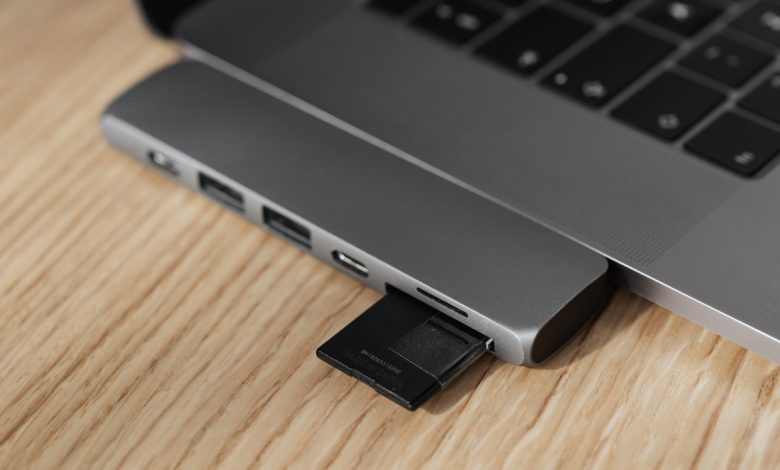
It can be disastrous to accidentally erase data from an SD card on a Mac or digital camera, especially if the files include precious photos and videos. So, is it possible to recover deleted files from SD card on Mac?
Yes, SD card recovery on Mac is possible. Whether done on purpose or by accident, files are not immediately lost when removed from the SD card. Instead, the original data is stored until it is overwritten with new data, and the file system only designates the storage location as “existing.”
This tutorial guides you through three tried and true ways to recover deleted SD card files on macOS, explains why SD card data loss occurs, and explains how Mac SD card recovery works.
How SD Card Data Recovery Works on macOS
To find recoverable file fragments, professional SD card data recovery software such as EaseUS Data Recovery Wizard for Mac uses low-level card scanning. SD card data recovery software examines information, directory structures, and file titles to recover deleted files, including deleted photos and videos, accidentally deleted audio files, and other files.
However, many factors determine the success of recovery:
- Has the SD card been used since it was erased
- File system (exFAT, FAT32, etc.)
- Formatting level or corruption
To increase the chances of recovering SD card data, stop using the SD card immediately after data loss.
Common Reasons Files Are Deleted from SD Card on Mac
Understanding the causes of SD card data loss is helpful before understanding how to recover SD card files on Mac. These are the most common reasons:
- Accidental deletion while browsing SD card files in macOS
- Accidentally formatting an SD card in Disk Utility or a digital camera
- Unknowingly Emptying Trash after deleting SD card files
- File system corruption due to unsafe extraction
- Virus or malware attacks from infected devices
- Power failure or system crash during file transfer
- Improper removal of SD card from Mac or camera
- Using the SD card on multiple devices regularly (camera, phone, Windows PC, Mac)
How to Recover Deleted Files from SD Card on Mac
There are three reliable ways to recover lost videos or photos from SD card on macOS, depending on how the files were deleted and whether you have backups.
Method 1: Recover SD Card Files on Mac with Data Recovery Software
Mac data recovery software is the best option when the SD card is formatted or files are permanently deleted and users don’t have backups.
EaseUS SD card recovery software can help you recover deleted files from SD cards and other memory cards such as TF cards, CF cards, etc. Whether you’re using the card in an action camera, digital camera, or drone, EaseUS can quickly scan and restore important photos and videos.

Check these steps and get your SD card now:
- Step 1. Remove your memory card from the storage device and attach it to your Mac using a card reader.
- Step 2. Open the EaseUS Data Recovery Wizard for Mac and select the SD card from the list of accessible disks. Click “Scan for lost files” to start data recovery.
- Step 3. During the scan, you can filter the scan results by file type (documents, movies, photos, etc.).
- Step 4. Preview the files to ensure integrity before downloading, select the files you want to restore, and save them to a different location (don’t go back to the same SD card).
Here is a video tutorial that can help you better to recover files from SD card:
Powerful SD Card Recovery on Mac & Windows | Full Tutorial + Tips for Safe Data Storage
Method 2: Recover Deleted Files from SD Card Using Mac Trash

This method works if you delete files from the SD card in your Mac’s Finder and you haven’t emptied the Trash. Returns are fast and free.
Check out how to recover deleted files from SD card on Mac with trash:
- Step 1. Find the trash icon on the Dock and click it to open the trash folder.
- Step 2. In the trash folder, you can scroll to find deleted SD card files. It is also available to search for a file name to quickly find a specific file.
- Step 3. Select all the desired files; you can drag them to another folder to restore them. If you right-click the file and select “Restore,” these files will be restored to the original location immediately
Method 3: Recover Deleted SD Card Files from Time Machine Backup
Every time your Mac is running, Time Machine is silently saving files for you. If you have backed up SD card files on your Mac with Time Machine, the disappearing photos may appear from previous photos.
Missing files are often hidden in older versions. You can find a specific folder, open Time Machine, and scroll through the timeline to find deleted items.
- Step 1. Connect the Time Machine disk directly to your computer. That way, the system can see you right away.
- Step 2. Now, find a specific folder on your Mac where the files from the SD card are used for storage.
- Step 3. Click the clock icon at the top, then select “Install Time Machine” to move forward. From there, the system opens a backup list for you.
- Step 4. Now choose which files to restore – scroll through the saved versions using the dates as your guide before clicking “Restore”.


How to Avoid SD Card Data Loss in the Future
Restoring files is helpful, but prevention is even better. Follow these tips to protect your SD card data on Mac:
- Always eject SD cards safely before removal.
- Avoid using the same SD card for all too many devices.
- Always backup SD card data to Mac or cloud storage.
- Do not interrupt the file transfer or formatting processes.
- Use high-quality SD cards from reputable brands.
- Scan external devices for malware.
- Avoid overfilling SD cards.
- Improving these practices greatly reduces the risk of SD card corruption and file deletion.
The conclusion
Losing important files on an SD card doesn’t have to be permanent. Ideally, data recovery tools like the EaseUS Data Recovery Wizard, Mac Trash check, or pulling from Time Machine, the fix is always within reach.
Stopping the use of the SD card is useful if things go wrong. If you move quickly, the deleted files can be recovered from the SD card in most cases.
If this article cleared your confusion and solved your SD card data loss problem, feel free to share it on social media with more friends!