OnePlus AI Recorder is a feature you probably don’t use, but you should
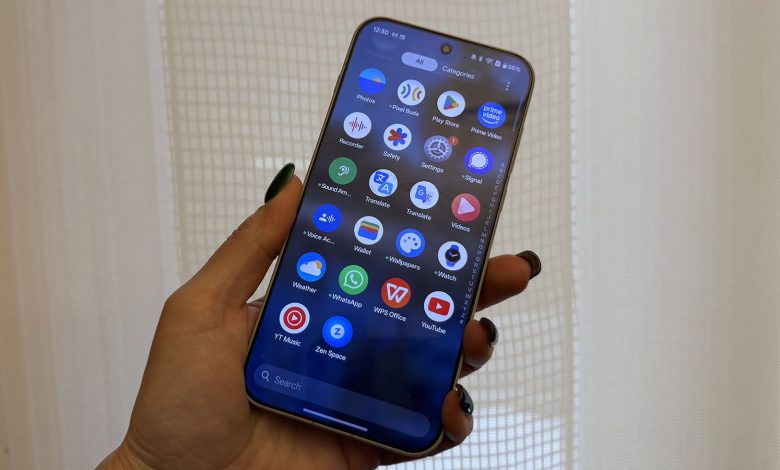
OnePlus phones are praised for their extreme durability, great battery life, super fast charging, and intuitive experience. There are tons of OS features you can use for productivity and entertainment, such as Plus Mind to save on-screen content to a digital environment, AI Author, and many photo editing tools. But there’s one little-known feature you should use that you probably haven’t tried: AI Recorder.
Similar to Pixel Recorder, you can record conversations, conferences, and even personal notes, and get real-time or recorded summaries and AI-powered summaries. I have used it in many situations, and it works amazingly.
How to use OnePlus AI Recorder
As a journalist, I conduct phone and in-person interviews, and the OnePlus AI Recorder features available on the OnePlus 13, OnePlus 13R, OnePlus 15, and OnePlus 15R have come in handy in both situations. Personally, I set up my camera and the OnePlus 15 to record audio alongside the camera’s capture. For phone calls, I use my mobile Zoom or Google Meet call or a second phone while recording from the OnePlus device.
The article continues below
I also used it to record presentations and conferences. I went to an AI conference in Spain, for example, and I put the phone next to mewith many days of a series of presentations of 30 minutes to one hour. I can start and stop each one, name the file, and move on to the next one. I did the same for a presentation at my son’s nearby school. Despite sitting several rows back, the sound was captured well and clearly.

But my favorite feature is the fast AI transcription and post-recording. You can get a complete transcription of any audio recording in real time or a few minutes later. I used this for the conference recording mentioned above, compiling everything into a Word document that I could scan to find citations for my article.
I did the same after the interview, fine-tuned the AI writing and fixed some minor mistakes before publishing the Q&A. This is an excellent feature for discussions, meetings, and brainstorming sessions between students or work groups. Generate AI transcripts, and you don’t have to worry about taking notes.
Tips for using OnePlus AI Recorder

Remember that when there are multiple speakers, the OnePlus AI Recorder is not always correct, sometimes it labels the same person as Speaker 1 and Speaker 2, for example. However, if the voices are unique and captured accurately, you can show a transcript of the text to one speaker rather than the entire conversation. This can be useful for group projects, even for staff or student evaluations.
Seeing real-time transcription on the screen as you play the recording makes it easy to follow along, ensure accuracy, and pinpoint key moments. It’s much easier than scrolling through a recorded timeline with a slider to find the time you want.

A summary, which excludes important moments, works well, but can miss important facts. However, it’s great for meeting notes and brainstorming sessions. In an interview I did with a Samsung manager, he gave an outline of the key points to answer, removing all extraneous details. I was still working from a raw version of the Q&A publication text, but this was a good overview of the key points he made.

By comparison, Pixel Recorder can create AI snapshots using Gemini as well, and it’s very clear but also at risk of losing some of the flavor you might want. I’d rather have a long summary that I can edit down than a short one that lacks important details.
For example, when I summarized my recording reading parts of my OnePlus 15 review, Pixel Recorder left out important features, such as mentioning my user experience and the full summary at the end. In contrast, the OnePlus Recorder captured everything, complete with bullet points and notes.
A long recording can take a long time to transcribe, and sometimes, it will stop, and you have to start over. But I was able to record the entire series of sessions, some as long as 2.5 hours.

You can rename recordings manually or intelligently. I tried this by recording my voice reading the introduction to this article. The name it gave behind the translation was “OnePlus AI Recorder: A Powerful, Overlooked Feature,” which is pretty obvious. In a Samsung Q&A, it titled the recording “Samsung’s Vision for Smartphone Innovation and AI.” This makes organization difficult, especially if you’re taking multiple recordings in a row and don’t want to have to go back and edit everything afterwards.
OnePlus Recorder is among the best

Of course, OnePlus is not the only phone manufacturer that can offer AI Recorder, but I found it to be very effective and reliable, one reason why its phones are ranked among the best Android phones. Pixel Recorder can accomplish many of the same tasks, but OnePlus offers a cleaner organization of conversations, breaking them down into digestible sections as opposed to large blocks of text. I also find that the snapshots are very detailed without being bloated.
Even if I don’t use the OnePlus 15 as my main phone, I always bring it to work events and have it by my side for conversations or meetings for the purpose of using this one app. It’s a great example of how AI can help productivity without replacing innovation.

AI features save time
The OnePlus 15 is one of the best Android phones you can buy right now with plenty of power, extreme durability, long battery life, and exciting AI features like Plus Mind. But one of the most underrated in my opinion is the power of AI Recorder, and the AI Recorder app is worth checking out if you haven’t already.