
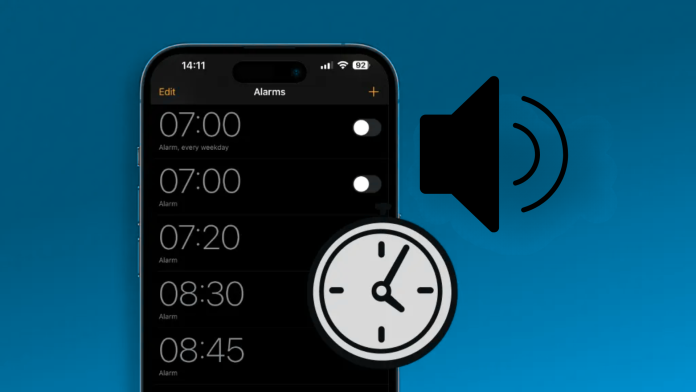

If your iPhone alarm stopped ringing properly after upgrading to iOS 26, you’re not alone. Many users have reported issues where alarms play silently, send sound through AirPods instead of the speaker, or fail to make any sound at all.
This bug has caused real frustration, especially for people who rely on their alarms for work, school, or important schedules. Thankfully, several practical fixes can solve the problem and restore normal operation of your alarm.
Fix 1: Check for New Software Update
Apple often releases software patches after major iOS updates to fix bugs and performance issues. If your alarm started not working after installing iOS 26, the first step is to check if Apple has already released a fix.
Go to: Settings > General > Software Update
Allow your iPhone a moment to search for available updates. If you see a new version, install it by following the on-screen instructions. Once the update is complete, reboot your device and check your alarm again. In most cases, minor updates include important bug fixes that directly address system issues such as alarm failures.
Fix 2: Increase the Ring and Alert Volume

One common problem is that alarms technically sound, but the sound volume is too low to be heard properly. Even if your media volume seems fine, your alarm depends on the ringtones and Notifications volume setting.
To test this: Settings > Sounds & Haptics
Make sure that Ringtone and Notifications the slide is raised high enough. You should also consider disabling Switch with buttons so accidentally pressing buttons doesn’t lower your alarm volume without you noticing. This simple fix often solves silent or weak alarm problems.
Fix 3: Make Sure Your Sound Alarm Is Not Set To Nothing

Some users found that after the update, some alarms had their sound option changed to “None,” which means the alarm goes off without making a sound.
To fix this: Clock > Alarm > Select your alarm > Sound
Choose a loud, reliable alarm tone that works for you. Check the sound before saving your settings. If the alarm tone is absent or muted, this change quickly restores proper operation.
Fix 4: Update Focus Mode Settings

Focus Mode settings in iOS 26 can interfere with alarms, especially if you use third-party alarm apps. Certain Focus profiles can block app notifications or sounds during scheduled hours.
Check your settings here: Settings > Focus
Review each Focus mode you use, including Sleep or Do Not Disturb. Make sure none of them exceed your wake-up time in a way that prevents alarms from going off. Adjust schedules if needed to avoid conflicts.
Fix 5: Disable Attention Features

Face ID’s Attention-Aware Features can reduce the alarm volume when your iPhone detects that you are looking at the screen. Although this feature is intended to be helpful, it can cause alarms to be too silent.
To disable it: Settings > Face ID & Passcode > Recognizing Features
Enter your passcode, and turn off this setting. This ensures that your alarm stays on even if your device gets your attention.
Final thoughts
The iOS 26 alarm problem has become an annoying problem for many iPhone users, but in most cases, it can be fixed without drastic measures.
Checking for software updates, verifying sound settings, adjusting Focus profiles, and disabling volume-reducing features usually solve the problem quickly. Until Apple fully resolves all software bugs, these steps offer the best chance of making sure your alarm works when you need it most.