


MacOS includes a built-in way to check memory usage, called Memory Pressure, and it can give you a lot of insight into the performance of your Macs, and whether or not you need more RAM. This is especially instructive if you feel like your Mac is slow, apps and media are stuttering, or you’re experiencing the annoying beachball cursor.
Using Activity Monitor, you can quickly determine whether your Mac has enough memory for your workload, or you can see if upgrading the RAM (or choosing more RAM on a new Mac purchase) can make a noticeable difference.
If you’re in the market for a new Mac, don’t skip this one, as checking your current Memory Pressure status can let you know if choosing higher RAM models for a new Mac makes sense for you.
What is Memory Pressure on a Mac?
Memory Pressure is a real-time indicator in macOS that shows how effectively your Mac is managing available RAM, as well as virtual memory.
Instead of focusing only on how much memory is being used, Memory Pressure shows the amount of available free memory, memory pressure, swap usage (virtual memory, which uses the disk as temporary RAM), and the overall program’s demands on memory. This makes it a more useful metric than just looking at used RAM or free RAM alone.
How to Check Memory Pressure on Mac with Activity Monitor
You can find Memory Pressure within Activity Monitor, the equivalent of the Mac’s task manager, under the Memory tab. Here’s how to watch it on your Mac:
- Open “Activity Monitor” from Spotlight or via /Applications/Utilities/
- Click the “Memory” tab.
- Under the Memory section within Activity Monitor, look for the “Memory Pressure” graph
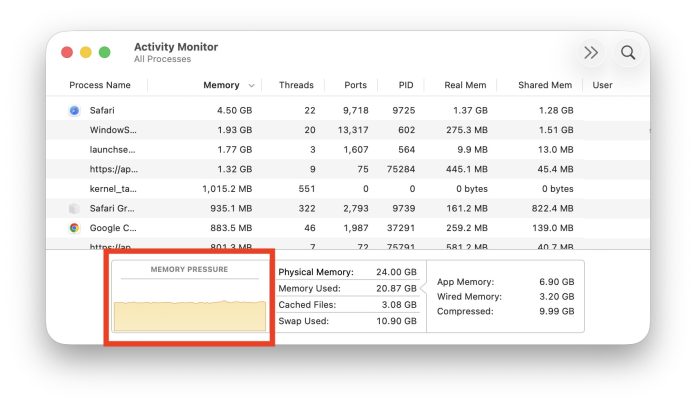
The Memory Pressure graph updates in real time, and uses a simple color system to indicate the state of memory pressure.

Memory Stress Colors and Meaning
- Green: normal memory usageindicating that the Mac has enough RAM to handle current tasks. This means that memory is managed well, less swap/physical memory is used, and performance on the Mac should be nice and smooth.
- Yellow: memory usage under stressindicating that the Mac is working hard to manage memory. This usually means that there is more swap and virtual memory being used, memory compression is more aggressive, free memory is lower, and you may see slowdowns or stuttering media/applications.
- Red: high memory intensitywhich suggests that the Mac is running out of available memory. A lot of memory pressure occurs, MacOS engages in large changes and use of virtual memory, and Mac performance may feel slow, fragile, and inconsistent. You may notice a delay in simple tasks like typing on a Mac.
If Memory Pressure turns red frequently, or is sluggish and often yellow, your Mac could benefit from more RAM.
How Memory Pressure Helps Determine If You Need More RAM
Memory Pressure gives you insight into Macs memory usage, and whether or not you can benefit from upgrading the RAM in an existing Mac, or opting for more RAM when buying a new Mac.
Check Memory Pressure periodically throughout a typical week of operation on your Mac. You can even leave Activity Monitor running all the time and turn its Dock icon into a clean activity monitor.
If your Mac doesn’t feel slow, and your Memory Pressure remains green when you check during the workflow, that suggests that the current amount of RAM you have is sufficient for your current workload.
If the Mac feels a little sluggish and the Memory Pressure is yellow, that suggests you are at or near the limits of your RAM and you may benefit from an upgrade now or in the future.
If your Mac is often slow, beach balling, sluggish, jerky, and performance is poor, and your Memory Pressure is red, that indicates you may need more RAM.
Remember, the RAM on an Apple Silicon Mac cannot be upgraded after purchaseas it is part of the integrated chip structure. This means you’ll want to know how much RAM you need now, and likely in the future, before making a RAM decision for your new Mac purchase.
Should you get a Mac with more RAM?
In general, we always recommend getting the most RAM you can afford when you get a new Mac. life. This is especially important today with Apple Silicon Mac architectures that have on-chip memory and are impossible to upgrade after purchase. Applications and the operating system are becoming increasingly memory hungry, that is the reality of modern computing. That doesn’t mean that the default amounts of RAM that Apple provides are enough, it all depends on your workflow, and how long you intend to own or use the Mac.
More RAM not only helps your Mac perform better now, but also future-proofs it and gives it a longer life. Future versions of macOS and future operating systems may use more memory in general, and it is possible that your future workflow and workload may change to include RAM-hungry tasks. Maybe a year or two from now you’ll be doing video editing on your new Mac? Who knows, but if so, you’ll be glad you got as much RAM as you can with the initial purchase.
Almost every Mac now switches to having 16GB of RAM from Apple, except for the MacBook Neo which has 8GB of RAM. But almost every Mac, except the Neo, can be upgraded at the time of purchase as well, from 16GB to 24GB, 32GB, 64GB, or more, depending on the Mac model you’re looking at.
The sweet spot for multitasking users is 24GB. But, if you’re the type of Mac user who has hundreds of browser tabs open, engages in photo editing, video editing, uses virtual machines, local AI agents and LLMs, uses Xcode, and those types of things, you’ll be very happy with 32GB RAM, 48GB RAM, 64GB RAM, or more if you can afford it.
Memory upgrades aren’t cheap, however, which is why watching your memory pressure during your Mac usage can help you make an informed decision, and determine if the upgrade price is worth it.
In the example screenshot below, you’ll see the memory pressure is yellow, and it’s always yellow and sometimes red during my normal flow. This shows that more RAM can be useful for me and my workload, so despite this being a Mac with 24GB RAM, I will be choosing 32GB RAM or more in future Mac purchases:
Check Memory Pressure, Let It Help You Determine Your RAM Needs
Use the Memory Pressure feature in Activity Monitor to check your current RAM usage with your workload throughout a typical week of Mac use. Check once or twice a day, and see if you see green, yellow, or red memory pressure. If you often see yellow, or red, that means your Mac is struggling to manage memory, and you’ll likely benefit from more RAM now, or when you make the purchase decision.
Testing Memory Pressure provides a really easy way to determine if your Mac needs more RAM, or if more RAM makes sense for a new Mac purchase, as the Memory Pressure graph provides quick and reliable feedback on your memory usage, during real-world use of your Mac.
So, if you’ve ever wondered how to determine if your Mac needs more RAM, or if your Mac is running slow due to memory issues, Memory Pressure is a great way to determine that.
–
Do you ever check Memory Pressure? If so, what do you get? Do you have enough RAM as it is, or can you get more with a future purchase? Have you ever used Memory Pressure to decide on RAM upgrades and Mac choices? Share your opinion and experience in the comments.