

Over the years, the iPhone operating system has become more sophisticated. Apple adds new features with every version of iOS, and many of them are not always obvious, leading to hidden iPhone capabilities that you may not be aware of.
The tips below assume you have iOS 26 or later installed.
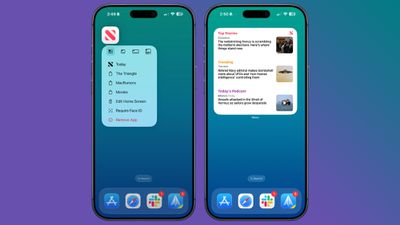
You can turn many app icons into widgets right on the iPhone home screen. Long press on the app icon, then select one of the squares from the top to select the widget size. Works with any Apple or third-party app that has a widget option. Long press again and select the top left icon with four squares to change it to a standard app icon.
See Where You’ve Been
In the Maps app, you can look back at your location history to see the places you’ve visited. It’s useful if you’re on a weekend trip, found a great restaurant, and want to remember where it was the next time you visit.
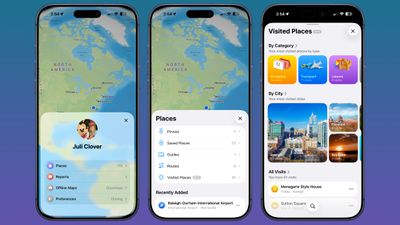
You can get to this feature by opening the Maps app, tapping your profile, selecting Places, and then selecting Visited Places. Areas are categorized as leisure or shopping, as well as city.
You can clear your history by scrolling down the interface, or select a time for the visit to be saved. Go to Settings > Maps > Location > Visited Places to turn it off completely.
Set Custom Vibration
You probably know that you can set custom sounds for people who call or text, but you can also do the same thing with vibration patterns if you keep your iPhone on silent all the time, like civilized people do.
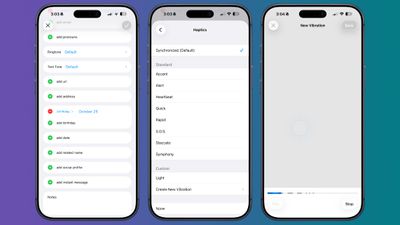
The important people you message can each have a different vibration pattern, so you know who’s texting without looking at your phone.
To set a vibration pattern for someone, open the Contacts app and select them. Tap Edit in the upper right corner, then tap Text Tone or Ringtone. Tap on Haptics and select Create New Vibration. From there, you can use taps and pressure to create your own vibration patterns.
Customize Your Lock Screen Buttons
Your lock screen buttons don’t have to open the Flashlight and Camera app. You can set them in any Control Center option, including those from third-party applications.
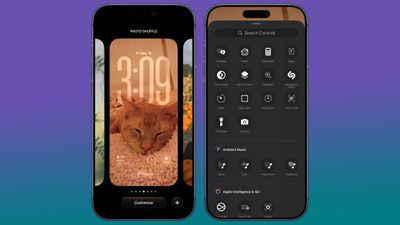
To do so, go to the Lock Screen and long press. Tap Customize if you want to edit your current wallpaper and lock screen, or the “+” button to make a new one. From there, press the “-” button on the apps on the left or right side of the screen to remove them, then press the “+” button to select something new to add.
Touching Back
Back Tap has been around for a long time, but it’s easy to forget it exists. You can use it to tap on the back of the iPhone to do anything you want, from taking a screenshot to using the flashlight. It even works with shortcuts you’ve created.
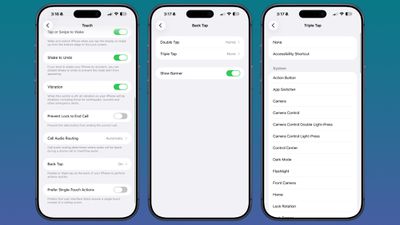
Go to Settings > Accessibility > Touch and scroll down to Tap Back to set it up. You can set double tap or triple tap actions.
Screenshot of the web page
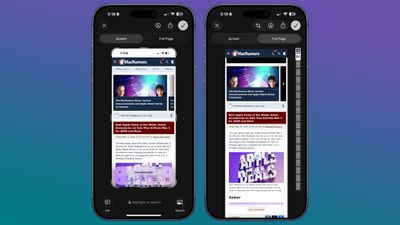
When you press the side button and volume buttons to take a screenshot, the default is to capture what is currently on your display. If you want to screenshot an entire web page or PDF, there is a way to do it. Take a screenshot as usual, then tap it (if you have a full-screen preview). Select “Full Page” at the top of the interface, then choose where to save your extra long screenshot.
Hide Apps
If you have apps that you don’t want to appear on the Home Screen, you can hide them one by one by long-pressing and tapping the Face ID option, or you can hide the entire app page at once. To hide the app page, long press on the Home screen to enter jiggle mode.
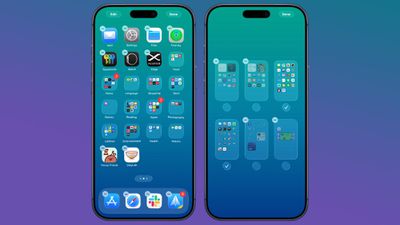
Tap on the dots below the display, and select the app page you want to hide from view. Apps hidden in this way do not appear in the Hidden folder in the App Library. You can still find them through Open Search and they are visible in their respective App Library section. To unhide the page, follow the same steps and tap the check box to bring it back.
Quick Set Time
If you add the Timer option in Control Center, you can long press on it to get a slider that lets you choose the amount of time you want to set it for.
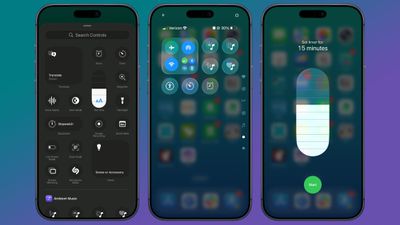
In Control Center, press the “+” button and select Add Control. Select the Timer icon to add it to the Control Center. Long press the timer, select a time value from the slider, and tap Start. Times range from two hours to one minute.
Delete Location Data for Photos
If you are sending an image to someone else, you may want to remove the metadata as a first step. To do so, select a photo in the Photos app, swipe up, and tap Adjust Location. From there, you can select No Location.
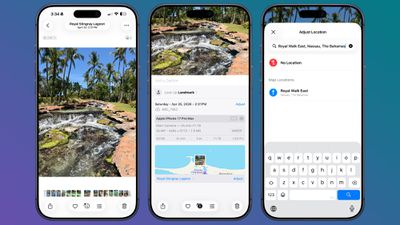
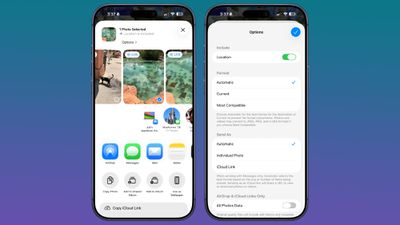
Alternatively, if you go to share the image, you can turn off the metadata there. Select an image, then press the Share button. Tap Options, then turn off Location.
You can use timers to control how long music, podcasts, audiobooks, and other media play, which is useful if you just want to listen for a short time at night.
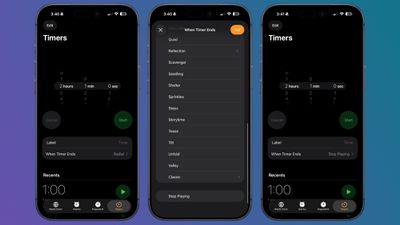
In the Clock app, tap Timers. Set a time, then tap the When Timer Ends option. Scroll down and select Stop Playing. If your timer is off, any media you are playing will stop.
Additional Tips
Do you have a favorite iPhone tip that most people don’t know about? Let us know in the comments below.