

In this quick post, I explain why you might want to get a silent tone on your iPhone or iPad, and how to use it on your device.
I use two SIM lines on my iPhone. The second SIM is only for my bank (they are instructed never to call me) and backup mobile data. I don’t take calls from it because I know it’s spam or bad calls.
Until recently, I had set a different ringtone for this second SIM, which automatically indicated that I should ignore this call. However, even the custom ringtone for this line meant that people around me had to be distracted by an incoming call. Sometimes, my wife even wondered who was calling and why I refused to answer.
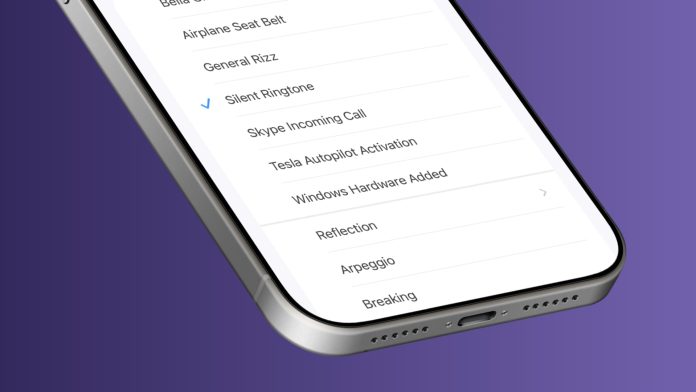
That’s when I found a silent ringtone on my iPhone and set it as my second SIM ringtone. Now all calls to this number go through normally, but they don’t alert me with a ringtone. If I’m relaxed, I can just look at this missed call in my Phone app and Truecaller and be convinced that it was just another unimportant call that I should have completely ignored.
Having a silent ringtone also allows me to set it as a custom ringtone for other people whose calls I don’t want to be notified, but it’s not socially acceptable to reject their call or block their number.
There are several alternatives for silent ringtone but why they don’t work for me
Silent mode: Using a silent ringtone ensures that I don’t have to put my iPhone in silent mode, as that also silences calls to my main SIM line and silences all other calls, text, and app notifications, such as those from WhatsApp and FaceTime.
Call Focus Filter: I could set up a Focus mode that only allows calls from my main SIM line, while keeping my other SIM active on mobile data. However, this means keeping Focus mode active at all times. Also, I can’t see the calls in my Phone app (even though most of them are spam).
Get a silent ringtone for iPhone or iPad
You can search for “Silent Ringtone” in the pre-installed iTunes Store app and buy one for 99 cents. Or, follow these steps to get one for free.
1) Make sure your iPhone or iPad is running the latest version of iOS 26.
2) Use one of these methods to get a silent ringtone:
- Search the web ‘Silent Ringtone‘ on your iOS device and get a ringtone of 29 seconds or less. You can get it in MP3, M4A, M4R, or other popular format.
- Visit this Zedge.net link and click Download > Continue in the browser. Wait a few seconds, then tap Download. Even if this Zedge version of the ringtone is 30 seconds, iOS may display an error; if so, just cut it to 29 or 28 seconds (it will take about 2 minutes).
- Tap and hold this link in Safari and select Download Linked File for a 28-second silent ringtone, courtesy of Zedge.

3) Open the Files app on your iPhone or iPad and go to your Downloads folder. You can also view this new file at The latest tab.
4) Tap the silent ringtone, and it should open a preview right in the Files app. Tap that share button and select Use as ringtone (it will open the ringtone screen in the Settings app). This silent tone is now added to your iPhone as a ringtone option. It will remain there even if you delete the MP3 file from the Files app.

5) Now, make sure you’re on an iPhone Settings > Sounds and Haptics > Ringtone > (select the SIM line if you use more than one) > and press the button Silent Ringtone to set it as a ringtone.

You can also edit a contact and set their custom ringtone to Silent Ringtone.
What about a quiet text tone?
You don’t need to follow the steps above to add a silent ringtone to your iPhone if all you need to do is not have a ringtone for your new texts. Simply put, it goes to iOS Settings > Sounds and Haptics > Text Tone and select Nothing. Unfortunately, iOS still doesn’t offer the option to choose Nothing as a ringtone, and thus the method above.

Also, check out: 5 ways to find ringtones for your iPhone